The prompt behind this example
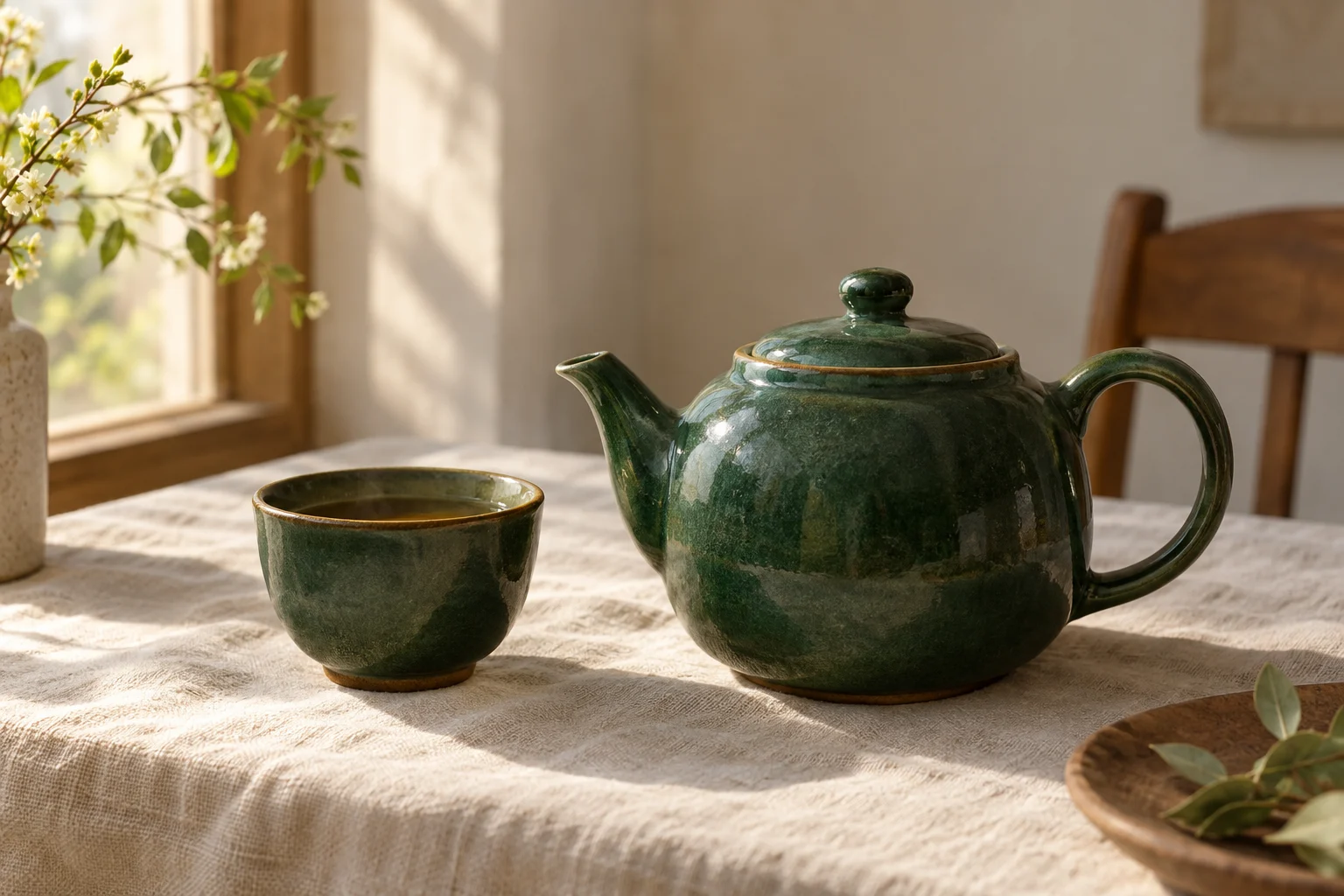
Editorial still-life photograph of a forest-green ceramic teapot and one matching cup on a cream linen cloth, warm window light from the left, restrained natural colors, a calm uncluttered background, no text or logos.
AI Image Generator
Describe the image you want to see. Build a composition with a subject, setting, light, and visual style, then use the AI image generator to create a new picture. Try an illustrated landscape, a product concept, or an original character; each prompt is a fresh starting point.
Add a reference or write a prompt. We’ll take it from there.
AI can change details. Review your result before sharing.The visual direction
These examples were generated with this tool and reviewed. Compare the actual output, reference photo where available, and the prompt before starting your own creation.
Generated by this text-to-image tool with GPT Image 2 EXT at 1K, landscape framing. The prompt specifies the teapot, matching cup, cream linen and left-side window light. This is AI artwork, not a photograph of an existing product.
Reviewed:
Editorial still-life photograph of a forest-green ceramic teapot and one matching cup on a cream linen cloth, warm window light from the left, restrained natural colors, a calm uncluttered background, no text or logos.
A handmade ceramic teapot on a dark oak table, a linen cloth, soft morning window light, warm neutral palette, editorial still-life photography, restrained composition.
An original floating village above green mountains, little houses and hanging gardens, luminous clouds, painterly illustration, calm atmosphere, wide cinematic composition.
Describe a subject, a setting, and a mood. Concrete details help more than a long list of vague adjectives.
Select a square, landscape, or portrait frame. Add camera angle or lighting instructions to your description.
Create one image, inspect the result, and download it. Refine your prompt if an object or detail needs attention.
Start with a subject, say where it is, describe the lighting, and choose a visual treatment. For example, a ceramic teapot on a wooden table in morning light with a muted editorial photography style gives the model a clear scene to compose.
AI images work well for moodboards, illustration concepts, social posts, and early visual exploration. Check fine details, text, anatomy, and brand marks before publishing. Generated images may contain unexpected errors and should be reviewed as part of your creative process.
Start by deciding whether you need a social illustration, a moodboard, a product concept or a visual for a presentation. Each destination needs a different composition. A social post may suit a square frame, while a banner often needs a landscape image with space for text. This AI image generator creates a new picture from a description. It does not edit an existing upload or automatically add your brand assets.
Describe the main subject first, followed by its setting, the framing, the light and the visual treatment. For example, a teapot on a dark wooden table, viewed at table height, lit by a nearby window, in restrained editorial photography gives the model a coherent instruction. Add a small number of details that matter most. Long lists of unrelated adjectives can make the result harder to judge because there is no clear priority.
Choose one dominant visual language for an attempt. An illustration prompt can describe painted textures and expressive shapes; a photography prompt can specify the viewing angle and direction of light. For a product concept, describe the material, silhouette and background, but do not treat a generated view as proof that the object can be manufactured. The frame selector changes composition, while the written prompt controls the visual direction.
If the image will sit behind a heading or beside a block of copy, tell the model where you need a quiet area. A subject on the right with uncluttered space on the left is more useful for a banner than a busy centered composition. The model may still place details in that space, so inspect the result and crop it as needed. This page does not position live text or export a finished website layout.
Review the composition before concentrating on fine detail. If the subject is too small, ask for a closer view; if the background dominates, simplify it; if the lighting feels harsh, specify a softer source. Change one major instruction per attempt to make comparisons useful. Each submission creates a separate image and uses its own credit on success. There is no seed control, so repeated prompts may produce different compositions.
Inspect text, fingers, reflections, repeated objects and edges at a useful viewing size. Add exact logos or typography in an editor instead of relying on the model to reproduce them perfectly. The completed image can be downloaded and found again in My Creations. New accounts receive 10 signup credits valid for 365 days; successful images cost one credit and failed provider tasks return the reserved credit. Check the displayed balance before starting another attempt.
No. This tool starts from a text description. If you want to transform an existing photo, choose the Ghibli AI or image editing workflow instead.
Yes. Use the frame selector to choose square, landscape, or portrait output. Different frames are useful for social posts, banners, and illustrations.
Text and tiny details can contain errors. Inspect every result before publishing and add critical typography in an image editor when exact wording matters.